
How to Add a Reserve Button to Your Google Business Profile
Most guests start with a Google search. They type something like "Italian restaurants near me" or "best dinner spots in [city]." Your Google Business Profile is often the first thing they see. If there's a Reserve button right there, they can book a table in seconds. If there isn't, they move on to the next restaurant.
Adding a Reserve button that links to your bavoli booking page takes about five minutes. This guide walks you through every step.
Why this matters
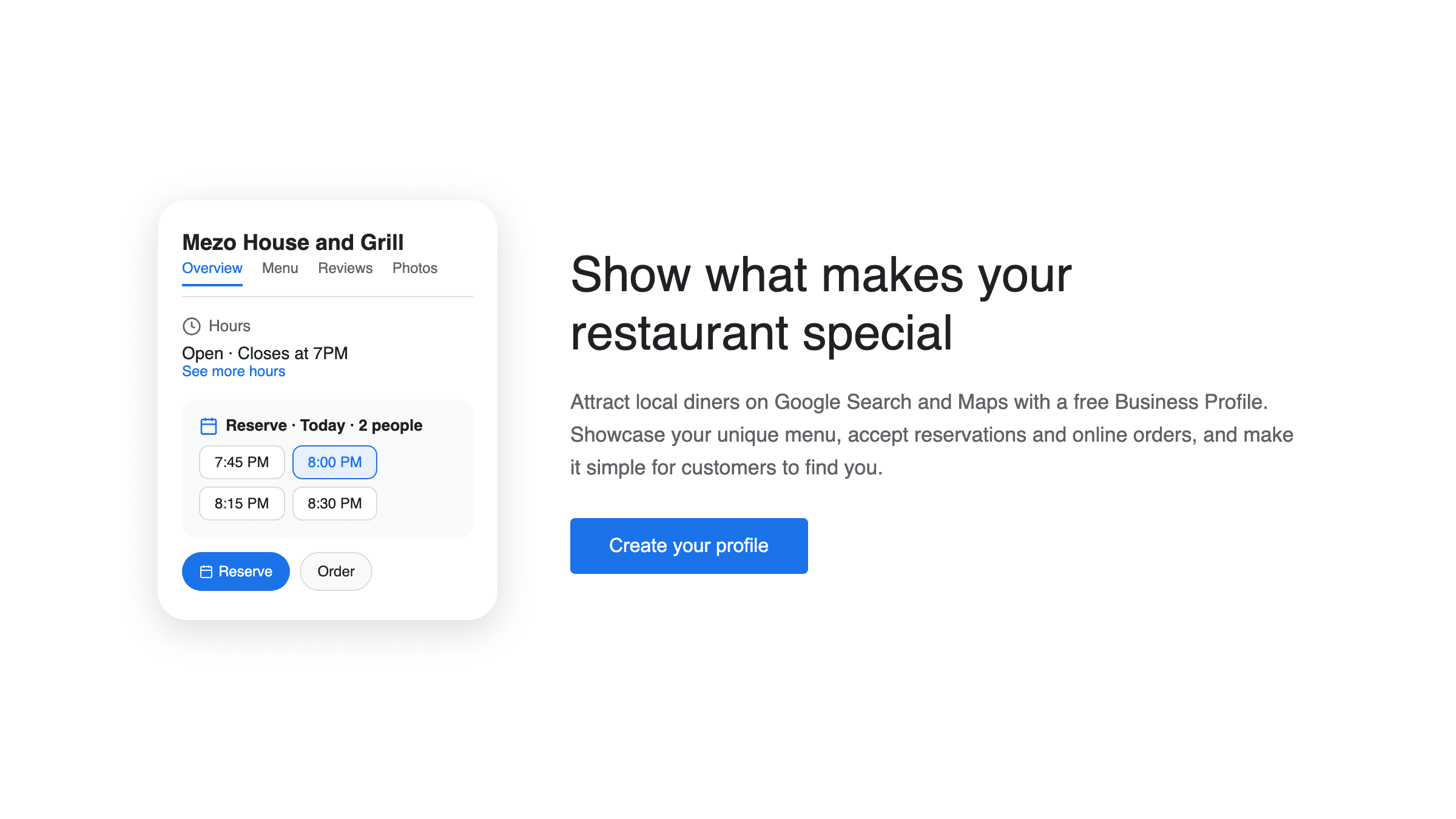
Think about how your guests find you. Many of them pull out their phone, search for restaurants, and scroll through the results. Google shows your hours, photos, reviews, and a map pin. When a Reserve button appears alongside all of that, guests can go straight from "this looks good" to "table for two at 7pm."
Without that button, guests have to call you (and they might not if it's late) or hope they can walk in. A booking link removes that friction and fills your tables.
What you need before you start
A Google Business Profile. If your restaurant already shows up on Google Maps with your correct name, address, and hours, you have one. If you haven't claimed it yet, go to business.google.com and follow the steps to verify your listing. See our Google Business Profile setup guide for full instructions.
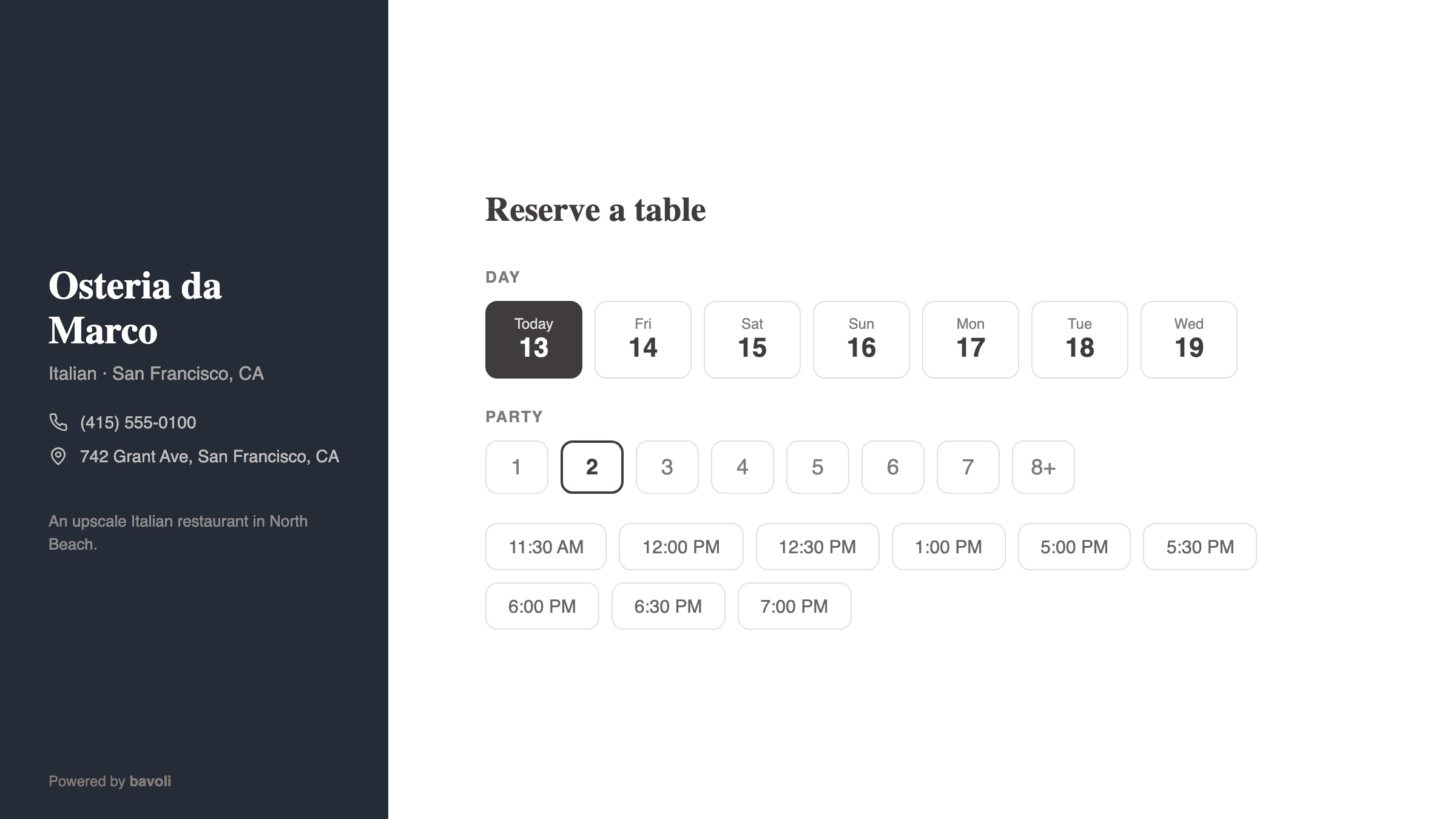
A bavoli account. Sign up at bavoli.com if you haven't already. Once your restaurant is set up, you'll have a booking page at a URL like bavoli.com/book/your-restaurant-name. You can find your exact booking URL in your bavoli dashboard under Settings.
Step-by-step: Adding your booking link
1. Sign in to Google Business Profile Manager
Go to business.google.com and sign in with the Google account you use to manage your restaurant's listing.
If you manage multiple locations, select the restaurant you want to update.
2. Open your profile editor
Click Edit profile in the left menu. This opens the section where you can update your restaurant's details, including contact info, hours, and booking links.
3. Find the booking or reservation section
Look for a tab or section labeled More. Within that section, you'll see fields for different types of links. Google provides a few options depending on your business category:
- Reservation URL or Booking URL: This is the field you need.
- Menu URL: A separate field for your menu (you can add this too, but it's not what we're setting up right now).
- Order URL: For online ordering links.
If your business category is set to "Restaurant" or similar, the reservation field should be available. If you don't see it, check that your primary category in Google is set correctly (see the Troubleshooting section below).
4. Paste your bavoli booking URL
In the Reservation URL field, paste your full bavoli booking page link: https://www.bavoli.com/book/your-restaurant-name
Replace "your-restaurant-name" with your actual restaurant slug. You can copy this directly from your bavoli dashboard or from the browser address bar when you visit your booking page.
Make sure the URL starts with https://. Google requires this.
5. Save your changes
Click Save. Google may take a few minutes to update your listing. In some cases, changes can take up to 24 hours to appear publicly.
What guests will see
Once the link is live, here's what happens when someone searches for your restaurant on Google:
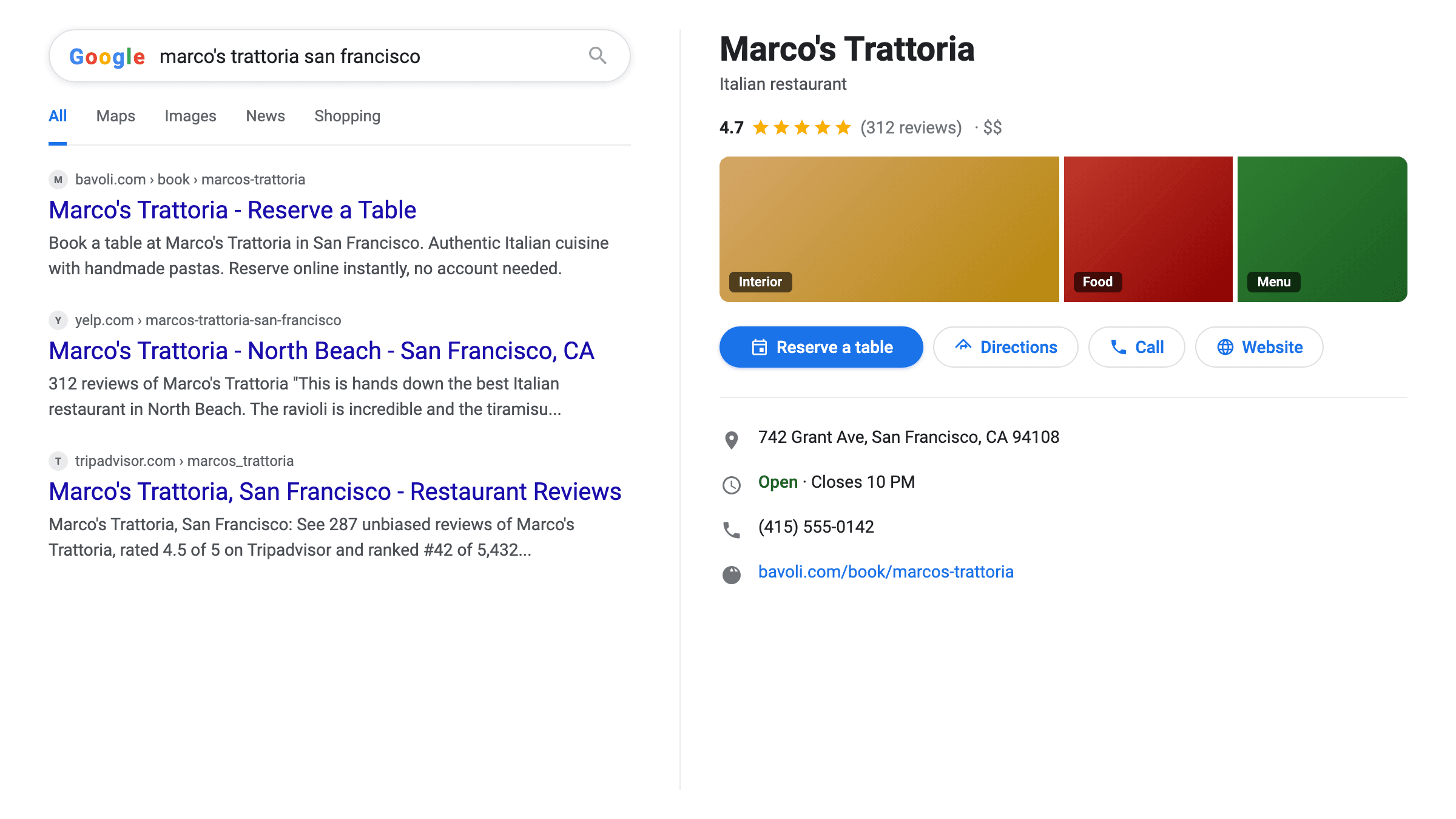
- On Google Search: Your business panel on the right side of the results will show a Reserve a table button. Clicking it takes guests directly to your bavoli booking page.
- On Google Maps: Your listing will display the same Reserve button. Guests browsing the map can tap it and book without leaving the Maps app (it opens your booking page in a browser).
- On mobile: The button is especially visible on phones, where Google shows action buttons prominently at the top of your listing.
Guests pick their date, time, and party size on your bavoli page. You get a notification, and the reservation shows up in your bavoli dashboard right away.
Testing your Reserve button
After saving your changes, take a minute to make sure everything works.
- Search for your restaurant on Google. Use your phone or computer. Type your restaurant's name into Google Search.
- Look for the Reserve button. It should appear in your business panel. If it doesn't show up yet, wait a few hours and try again.
- Click the button. It should open your bavoli booking page with the correct restaurant name and available time slots.
- Make a test reservation. Pick a date and time, enter your own name and phone number, and complete the booking. Confirm that it appears in your bavoli dashboard.
- Cancel the test booking. Go to your bavoli dashboard and cancel the test reservation so it doesn't block a real table.
If the button links to the wrong page or doesn't appear, see the section below.
Troubleshooting common issues
I don't see a Reservation URL field in my profile. Your Google Business category may need to be updated. Go to Edit profile, then select the About tab. Check that your primary category is set to "Restaurant" or a specific restaurant type (like "Italian restaurant" or "Sushi restaurant"). Categories like "Food service" or "Catering" may not include the reservation field.
The Reserve button isn't showing up after I saved. Google can take up to 24 hours to reflect changes. If it's been longer than that, sign back in to your Google Business Profile and confirm the URL is saved correctly. Also double-check that the URL is complete and starts with https://.
The link goes to a broken page. Make sure the URL matches your bavoli booking page exactly. Visit the URL yourself in a browser to confirm it loads. Common mistakes include extra spaces in the URL, a missing letter in your restaurant slug, or using http:// instead of https://.
Google replaced my link with a different booking provider. Google sometimes partners with third-party reservation services that can override your direct link. If this happens, go back to your profile editor and re-enter your bavoli URL. You can also contact Google Business Profile support to request that your preferred booking link be used.
My restaurant isn't verified on Google yet. You need to complete Google's verification process before you can edit your profile. This usually involves receiving a postcard, phone call, or email from Google with a verification code. Visit business.google.com to start the process.
That's it. Five minutes of setup, and every guest who finds you on Google can book a table with a single tap.


