
How to Add Online Reservations to Your Website
Most guests check your website before they visit. If they can't book a table right there, many will move on to a restaurant where they can. Adding a reservation button to your website takes about 10 minutes. No coding required.
This guide walks you through it step by step.
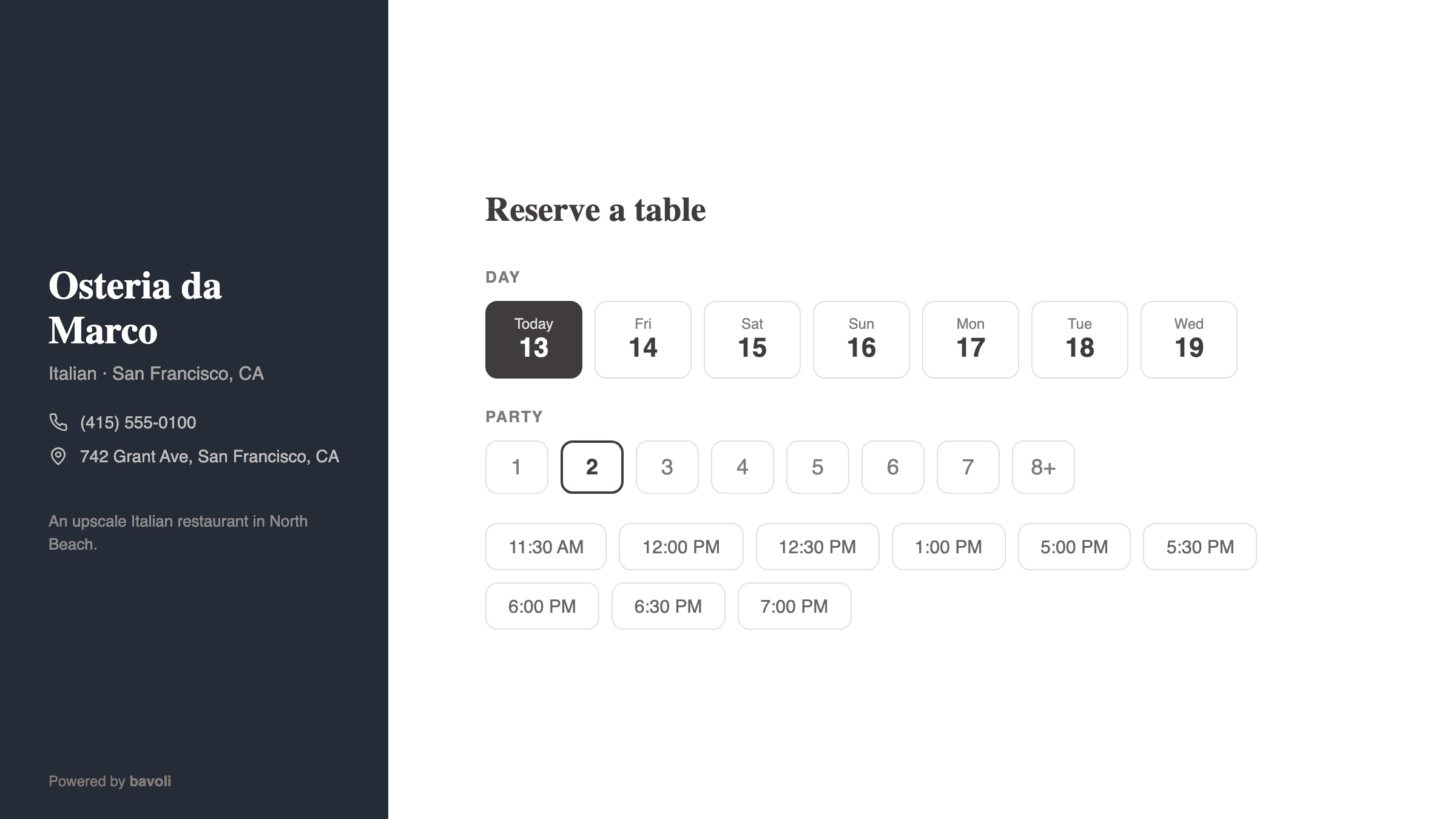
Why your website needs a reservation button
Think about what happens when a guest finds your restaurant online. They look at the menu. They check your hours. Then they want to book a table.
If there's no way to reserve online, they have two choices: call you (and hope someone picks up) or try a different restaurant. During a busy dinner rush, you're probably not answering the phone. That's a lost booking.
A reservation button on your website lets guests book any time of day. Late at night. Early in the morning. While you're focused on service. Your tables fill up while you're doing other things.
Find your bavoli booking page URL
Every restaurant on bavoli gets its own booking page. The URL follows this pattern: bavoli.com/book/your-restaurant-name
For example, if your restaurant is called "Marco's Trattoria," your booking page might be bavoli.com/book/marcos-trattoria.
To find your exact URL:
- Log in to your bavoli dashboard at bavoli.com
- Look at the top of your dashboard. Your booking page URL is displayed there.
- Copy this URL. You'll need it for the next steps.
Write down your URL or keep it copied to your clipboard. Every method below uses this same link.
Option 1: Add a simple link (works on any website)
This is the easiest approach. You add a button or text link on your website that takes guests to your bavoli booking page. It works on every website platform.
Where to place your reservation button
Put your booking link where guests will actually see it. The best spots are:
- Your website header or navigation bar. This shows up on every page. Guests can always find it.
- Your homepage, near the top. Don't make guests scroll to find it. Put it right where they land.
- Your contact page. Guests visiting this page are already trying to reach you. Give them a booking option.
- Your menu page. Once someone reads your menu and gets hungry, let them reserve a table right away.
A button works better than a plain text link. It stands out on the page and tells guests exactly what to do. Label it something clear like "Reserve a Table" or "Book a Table."
Option 2: Step-by-step for your website platform
WordPress
- Open your WordPress dashboard and go to the page you want to edit (usually your homepage).
- Click Edit to open the page editor.
- Click the + (plus) button to add a new block.
- Search for Button and select the Button block.
- Type your button text: "Reserve a Table"
- Click the button you just created. In the toolbar that appears, you'll see a link icon (it looks like a chain link).
- Click the link icon and paste your bavoli booking URL (e.g., bavoli.com/book/marcos-trattoria).
- Toggle on Open in new tab so guests don't leave your website entirely.
- Click Update or Publish to save your changes.
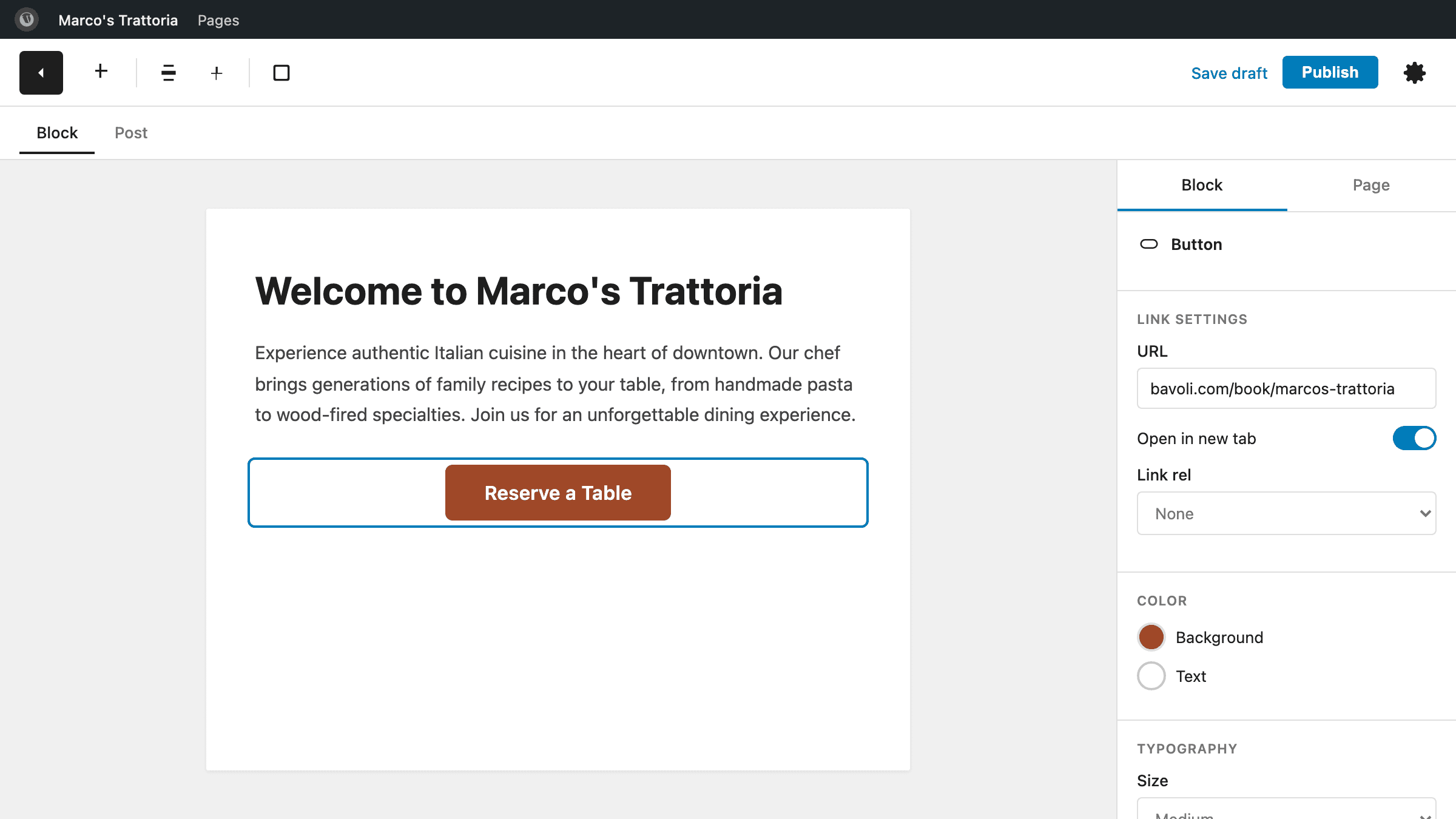
Tip: If you're using a WordPress theme with a menu editor, you can also add your booking URL as a menu item. Go to Appearance > Menus, add a Custom Link with your bavoli URL, and label it "Reserve a Table."
Squarespace
- Log in to your Squarespace account and open your website editor.
- Navigate to the page where you want the button (usually your homepage).
- Hover over the section where you want to add it and click Edit.
- Click an insertion point and select Button from the content options.
- In the button editor, type your label: "Reserve a Table"
- In the Click-through URL field, paste your bavoli booking URL.
- Check the option to open the link in a new window.
- Click Save and then Done to publish your changes.
Tip: Squarespace also lets you add a button to your site header. Go to Header > Elements and add a button with your booking URL. This puts your reservation link on every page.
Wix
- Open your Wix Editor by logging in and clicking Edit Site.
- Click Add Elements (the plus icon on the left sidebar).
- Select Button.
- Choose a button style and drag it to where you want it on your page.
- Click the button to select it, then click Change Text and type: "Reserve a Table"
- Click the Link icon on the button settings.
- Select Web Address and paste your bavoli booking URL.
- Check Open in a new tab.
- Click Publish in the top right to save your changes.
Tip: In Wix, you can also add your booking link to your site menu. Go to Menus & Pages > Site Menu, click Add Link, and enter your bavoli URL.
Add your booking link to social media
Your website isn't the only place guests look for you. Make sure they can book from your social profiles too.
- Open the Instagram app and go to your restaurant's profile.
- Tap Edit Profile.
- Find the Website field.
- Paste your bavoli booking URL.
- Tap Done to save.
Now when guests visit your Instagram profile, they can tap the link and book a table directly.
- Go to your restaurant's Facebook Page.
- Click the Add Action Button below your cover photo (or edit your existing action button).
- Choose Book Now as the button type.
- Select Link and paste your bavoli booking URL.
- Click Save.
Your Facebook page now has a "Book Now" button that takes guests straight to your reservation page.
Test everything
Before you tell guests about your new booking option, make sure it works.
- Open your website on your phone. Tap the reservation button. Does it load your bavoli booking page?
- Open your website on a computer. Click the button. Same check.
- Try selecting a date, time, and party size on the booking page. Walk through the full process to confirm it works end to end.
- Check your Instagram profile link and Facebook button the same way.
- Ask a friend or family member to try booking. A fresh pair of eyes often catches things you miss.
If your booking page doesn't load, double-check that you copied the full URL correctly. The most common mistake is a typo in the restaurant name portion of the link.
Tips for getting more bookings from your website
Once your reservation button is live, here are a few ways to help it perform better.
Make the button easy to spot. Use a color that stands out from the rest of your page. If your website is mostly white and gray, a bold-colored button will catch the eye.
Use clear, direct language. "Reserve a Table" works well. "Book Now" works too. Avoid vague text like "Click Here" or "Learn More."
Put it above the fold. That means guests should see the button without scrolling down. If they have to hunt for it, fewer people will use it.
Mention it on your voicemail. When guests call after hours and get your voicemail, include your website in the message. Something like: "You can also book a table anytime at our website." This sends phone callers to your online booking page.
Add it to your Google Business Profile. Your Google listing is often the first thing guests see when they search for your restaurant. Adding your booking link there puts it in front of even more people. See our guide to adding a Reserve button on Google.
Keep your availability up to date. If guests try to book and see no open times, they won't come back. Check your bavoli dashboard regularly to make sure your hours and table availability are current.
That's it. Your website now accepts reservations around the clock. No phone tag. No missed bookings. Just guests finding your restaurant and reserving a table whenever it's convenient for them.


